Public Card
Public Cards are designed to communicate information to a broad audience. Unlike private Message Cards, Public Cards are not restricted to a specific list of members. Anyone with the Card's link can view it, or they can simply scan its QR code using the camera on a mobile phone.
A person does not need an AppKeyId account to view a Public Card. However, if the person is an AppKeyId user and is logged in, they can also acknowledge the Card and leave a comment. This allows the author to combine completely public access with authenticated acknowledgement when the viewer chooses to identify themselves.
Because Public Cards are written in Markdown, they can function as simple informational web pages. Authors can use headings, text, lists, links, images, and other Markdown features to create rich public content. Markdown can also reference external assets, such as images, provided those assets are available through a public URL.
Unlike private Message Cards or traditional informational websites, Public Cards provide several important capabilities:
-
Unrestricted Access — AppKeyId members and non-members can view the Card and access its publicly available content and assets.
-
Verified Acknowledgement — Logged-in AppKeyId users can acknowledge the Card, allowing the author to verify their dentity with biometric confidence and record when and, when enabled, where the acknowledgement occurred.
-
Expiration — The author can set an expiration date and time, limiting how long the Public Card remains available.
-
Geofencing — The author can geographically constrain where a Card can be viewed and/or acknowledged.
-
Return URL — The author can specify a URL that is displayed after the user acknowledges the Public Card, providing a gateway to additional web content.
Public Card Example
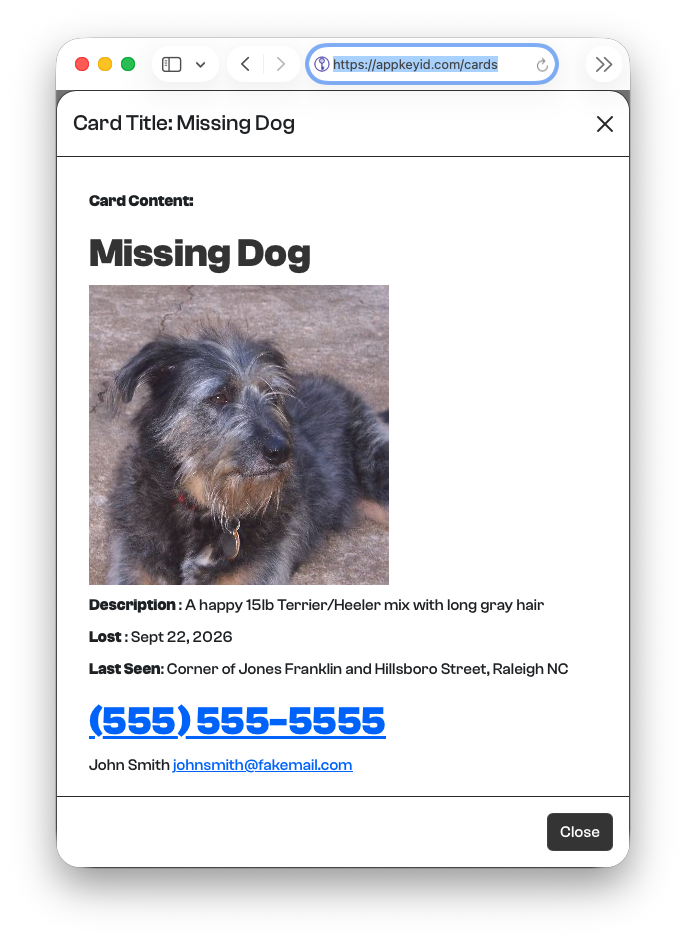
In the example below, a Public Card is used to create a simple Missing Dog notice. The Card contains information about the missing dog, photographs, contact information, and any other information that might help someone identify it.
The Card's QR code can then be downloaded as a PNG, printed, and placed on lampposts, bulletin boards, storefronts, or other locations throughout the neighborhood. Anyone who encounters the notice can scan the QR code with their phone and immediately view the latest information about the missing dog.
Because the QR code points to the AppKeyId Card rather than embedding the information itself, the author can update the Card as circumstances change while continuing to use the same QR code.
Step 1 — Create a Public Card
Create a new Card and select Public as the Card type.
Give the Card the following title:
Missing Dog
### Step 2 — Add the Markdown Content

Enter the following Markdown into the Card's **Content** field:

# Missing Dog

**Description**: A happy 15lb Terrier/Heeler mix with long gray hair

**Lost**: Sept 22, 2026

**Last Seen**: Corner of Jones Franklin and Hillsboro Street, Raleigh NC

# [(555) 555-5555](tel:+15555555555)

John Smith <johnsmith@fakemail.com>
Markdown makes it easy to include actionable contact information. Clicking the phone number on a supported mobile device will initiate a telephone call, while clicking the email address will open the user's email application with the address already populated.
Select Save to save the Public Card.
Step 3 — Upload a Picture
Next, upload a photograph of the missing dog as an Asset attached to the Card.
When uploading the image, make sure Upload asset for public access is selected. Public access is required in order to obtain a public URL that can be referenced from the Card's Markdown content.
After the image has been uploaded, select Save again.
Step 4 — Display the Picture in the Public Card
Open the Card and select the uploaded dog image from the Card's Assets.
In the asset window, select Small Cut at the bottom right of the window. This copies the public URL for the smaller version of the image to the clipboard.
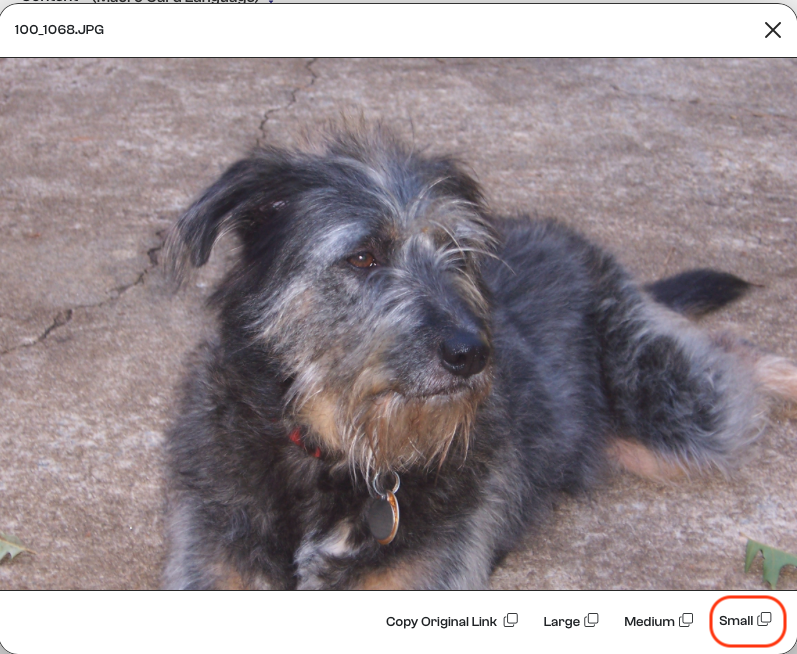
Return to the Card's Content field and add the following Markdown:

Replace <url of small cut> with the URL that was copied to the clipboard.
The ![Fifi] portion provides a description of the image, while the URL tells AppKeyId where the publicly accessible image is located.
Select Save. The photograph will now be displayed as part of the Public Card when someone opens it.
The result is a simple public information page that can be accessed from a web link or QR code. The author can subsequently update the description, photograph, contact information, or status of the missing dog without having to replace QR codes that have already been printed and distributed.